The Melvor Idle 2 Action Queue is a fan-made mod that runs skill actions in order and switches to the next one when you reach a goal. You can queue Woodcutting until you have enough logs, burn those logs in Firemaking, and then fish until you reach a target level. Install Melvor Mod Loader first, then open a character and press F6 to build your queue.
Install Action Queue on Windows through Steam
Action Queue v0.8.1 requires Melvor Mod Loader v0.2.0 or newer and was tested with Melvor Idle 2 v0.11.6-alpha.1 on Windows through Steam. Both downloads are listed on Nexus Mods, with Melvor Mod Loader listed as mod 2 and Action Queue as mod 5. Back up your save before installing, since an Early Access game update can break compatibility with the mod.
Install the loader first, then right-click Melvor Idle 2 in your Steam Library and choose Manage, then Browse local files. Extract the Action Queue archive directly into that game folder so the ActionQueue folder sits inside the mods folder. Launch through Steam, open a character, and press F6 or select Mods in the top bar to open the queue. If you want a different shortcut, rebind it from the Mods menu.
Build your first queue and choose stop conditions
In the queue window, pick a skill and search for an action, or select “Use what I am doing now” to add your current activity. Each step gets a stop condition, such as reaching a skill level, completing a set number of actions, spending a set amount of time, or using up its materials. Choose an ownership target when you want a specific amount in the bank and a production target when you want to make that many additional items.
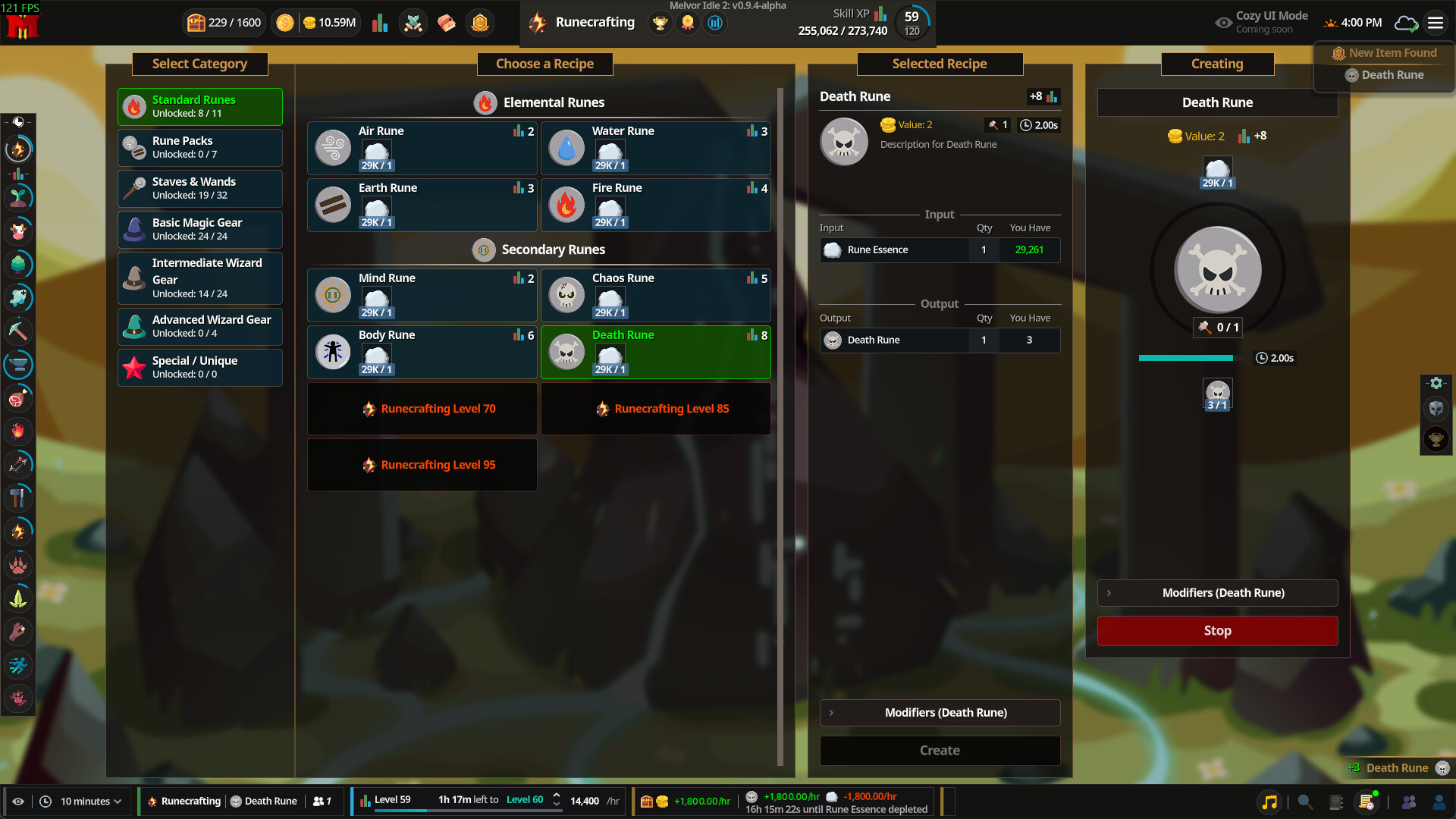
For a first queue, set Woodcutting to Oak Tree until you own 1,000 Oak Logs, then set Firemaking to burn Oak Logs until the action stops on its own. Add Fishing at Shallow Pools as the last step and set its goal to Fishing level 30. On supported crafting pages, the “+ Queue” button beside Create adds the selected recipe with the stop condition you set on that page. While the queue runs, the top status bar shows the active step, and you can reorder upcoming steps without interrupting it.
Clicking the game's Stop button on an active queue step removes that step from the running queue and moves forward while preserving your saved queue. Starting an action manually pauses the queue so you can take over. Enable “Start over at the end” if you want the sequence to repeat.
Plan a crafting chain from an item target
Open “Plan an item,” select the item, and enter your target quantity. “Make (this many more)” sets a production goal, while “Own in total” lets your existing finished stock count toward the target. The planner uses your character's active bonuses and current bank stock to calculate ingredient quantities. It estimates how long each step will take at normal game speed.
An Air Wand plan can line up Mining for Rune Essence, Smithing for Molten Glass, Crafting for Unpowered Orbs, Runecrafting for Air Runes, and the final wand recipe. Review the “bring yourself” list before you start, since it identifies ingredients you need to supply and explains when a recipe is blocked by a requirement such as a skill level. When you add a second plan, the planner accounts for what earlier queued steps are expected to produce and consume.
How offline progress and Multitask lanes work
Action Queue v0.8.1 can advance through queued steps during offline progress and resume where it left off after a restart. Combat steps wait until you reopen the game. If you plan to leave the game closed while gathering and crafting, put those steps ahead of any combat you want to do when you return.
Action Queue runs steps one at a time by default. To run separate sequences side by side, install the optional Multitask mod, enable its extra slots, and assign your steps to lanes. For example, one lane can cut and burn logs while another catches and cooks fish. Steps in the same lane run in order, and a step can wait for materials another lane is producing.
Save, share, and reuse queues
Save a sequence under a name such as “Oak logs and Firemaking” so you can reload it from the queue window's drop-down. Switching queues preserves pending edits as “Unsaved queue (auto),” and switching while a queue is running starts the newly loaded sequence from its first step. Use “Copy share code” to share a queue as text that another player can paste into the import field. When you import someone else's queue, review the resulting steps because the mod skips actions for content your character is missing or has yet to unlock.