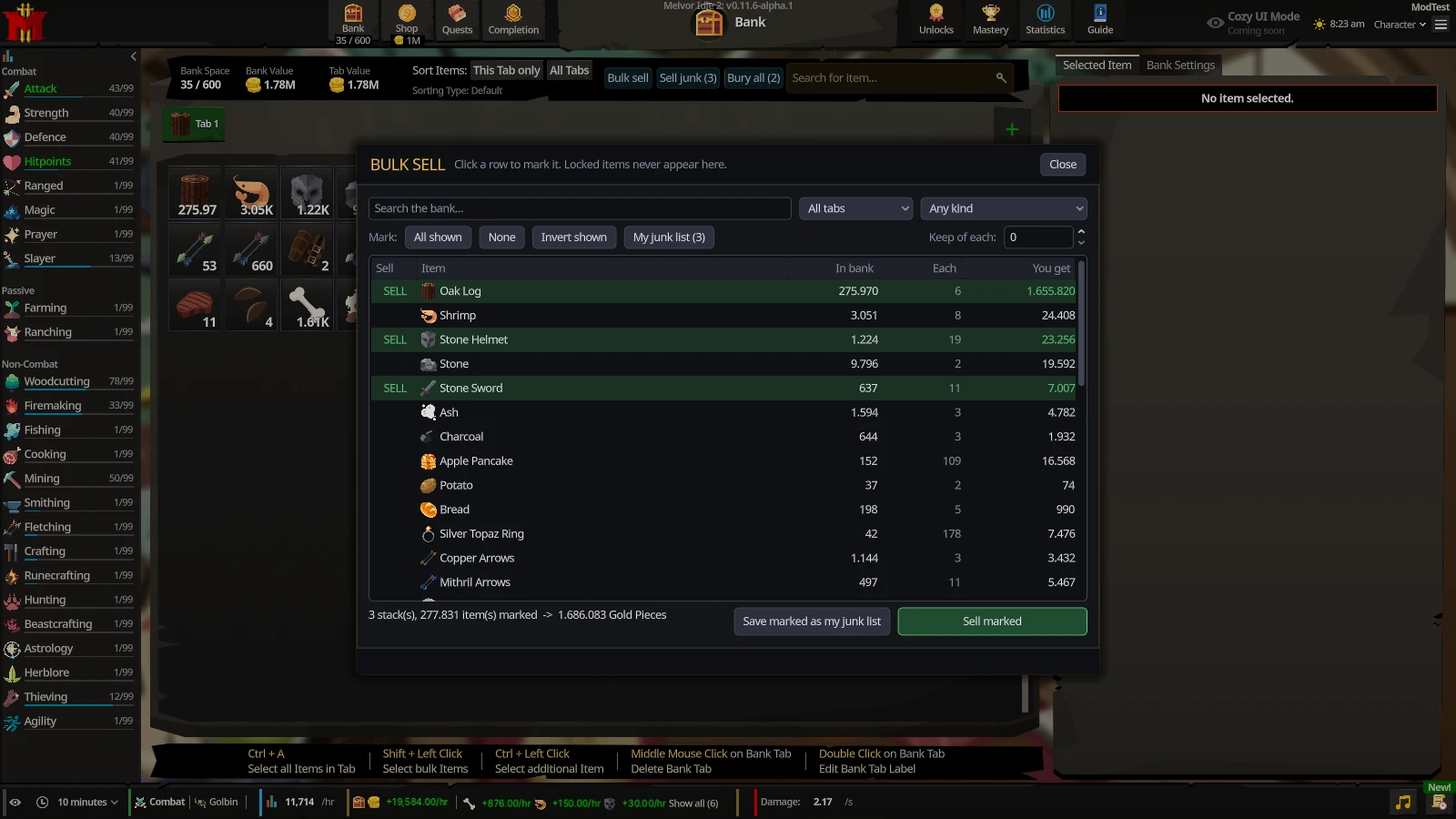
The Melvor Idle 2 Bulk Sell mod adds a bank window where you can sell several stacks at the game's usual prices and keep a set number of each item. The base game already lets you select multiple bank stacks with Ctrl and Shift, while this fan-made mod adds filters, a reusable junk list, and buttons for burying or opening items in batches. Once the mod is installed, press F7 or look beside the bank search box to open Bulk Sell.
How to install Bulk Sell on Steam
Install Melvor Mod Loader first, then download Bulk Sell - Bank Buttons by falorfrozen from the Files tab on Nexus Mods. In your Steam library, right-click Melvor Idle 2, choose Manage, and select Browse local files. Extract the Bulk Sell archive into the game folder so that BulkSell.dll ends up inside the BulkSell subfolder of the mods folder. Launch the game through Steam and open your bank to find the new buttons beside the search box.
Bulk Sell 0.2.4 was tested on game build 0.11.6-alpha.1 with Melvor Mod Loader 0.2.0 on Windows through Steam. An Early Access update can break the mod, so check the mod page for an update if the bank buttons stop appearing after a patch. If the mod fails to load, check MelvorModLoader.log in the game folder after launch, since the loader rewrites the log each time the game starts.
How to sell extra items and keep a reserve
Open Bulk Sell and narrow the table by search text, bank tab, or item kind, such as Woodcutting or Smithing. Choose Untagged to see items the bank has no kind assigned to, or click a column header to sort by quantity, unit price, or total value. Click individual rows to mark them, use All shown to mark the visible rows, or use Invert shown to flip the visible selection. Use None to clear your selection and start over.
Enter a number in Keep of each to leave that many units of every marked item in the bank. For example, if you mark a stack of 250 and set the reserve to 100, the sale includes 150 units from that stack. Review the item count and total gold at the bottom of the window, then click Sell once to start the sale and click the button again to confirm it. Lock any stack you want to protect entirely, since locked stacks stay out of the table and Bulk Sell skips them when selling, burying, or opening items.
How to use Sell junk, Bury all, and Open all
For items you regularly sell, mark their rows in the Bulk Sell window and choose Add marked to junk. Those rows display a junk label, and the bank's Sell junk button sells matching unlocked stock after you confirm. To take an item off the list in version 0.2.4, mark it and choose Remove marked from junk. Adding or removing marked items preserves the other junk entries, including items you currently have none of.
Bury all handles eligible bones and other buriable items, while Open all handles eligible chests, bags, and packs. Each button appears only when there is something it can act on. The first click on any of the three bank shortcuts changes the button to a confirmation prompt, and the second click carries out the action.