Melvor Idle 2 supports local saves and calculates offline progress at the same speed as active play. To back up your character, open the top-right Character Menu shown below or use the gear icon on the character selection screen. Choose Copy Save String and paste the string into a dated text file. When you return to the game, open the Event Log to see what your character gained while you were away.
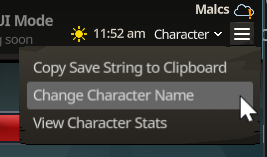
Back up your local save before changing anything
Name the backup file with your character’s name and the date so you can tell it apart from older copies. Keep the file outside your Steam installation folder. Make a fresh backup before installing or removing a mod, clearing local data, or choosing which copy to keep in a cloud sync conflict.
Keep the right save when switching devices
Steam Cloud syncs saves between Steam desktop installations, while Melvor Cloud uses your Melvor account to carry saves across devices. If a sync prompt appears after you switch computers, compare the timestamps and check which copy contains your latest progress before choosing one. If you’re moving from the demo to Steam Early Access, you can continue a local save on the same device or let Melvor Cloud carry over a cloud save automatically.
Plan an offline session and check your gains
Start the action you want to continue and check Current Action Tracking for hourly XP and how quickly the action uses or produces items. Check your supplies and available Bank space before leaving, since gathering can stop if the Bank fills up. Community documentation for the Steam Early Access build lists a default offline cap of 24 hours per session. When you load your character again, check the offline breakdown in the Event Log before starting your next action.