Melvor Idle 2 keeps your active task going after you close the game, at the same speed as active play and with a base offline allowance of 24 hours. Crafting can end sooner if you run out of ingredients or reach a stop condition. When you load your character again, the Welcome Back screen shows what you gained while away.
How the 24-hour offline limit works
The offline allowance caps how much time the game simulates while you're away. With the base allowance, a weekend away gives you up to 24 hours of progress. Time beyond your offline allowance does not count toward progress.
For an overnight break, leave a gathering action running if you need raw materials. Chopping trees adds logs without using up your crafting supplies. If you want to pause progress while you're away, stop your running tasks before closing the game.
Set a crafting stop condition before you leave
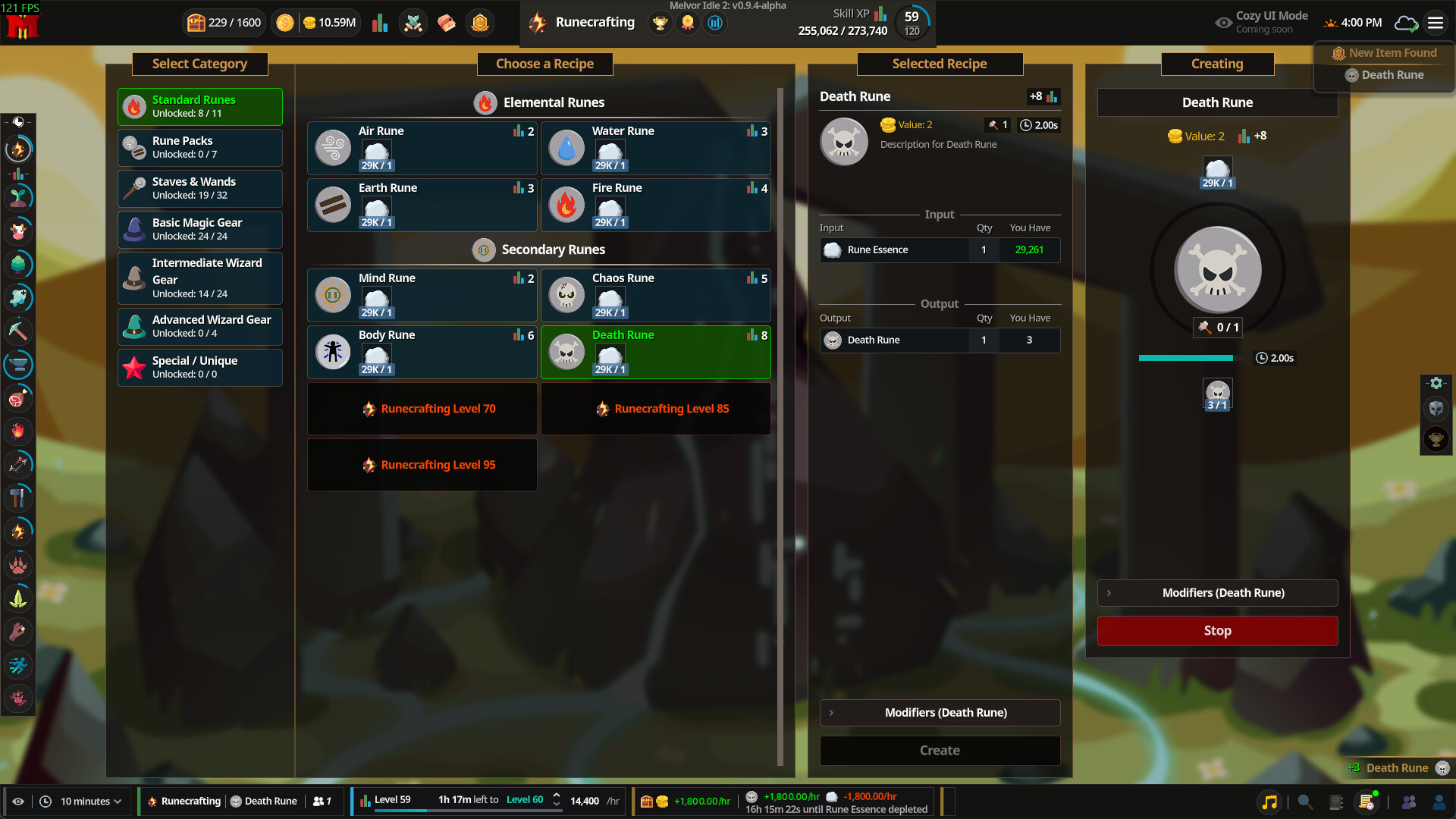
If the recipe you want is already running, press Stop before changing its stop condition. Select the recipe and open Manage Stop Conditions at the bottom of the Selected panel. Choose a condition, enter your target, and press Create to start or restart the batch. Before closing the game, confirm that the intended recipe appears under Creating, which shows the recipe currently running.
Use Products Gained to make a set number of new items, Products Owned to reach a total in your Bank, or Ingredients Remaining to keep materials in reserve. One Normal Log makes 20 Arrow Shafts per craft before bonuses, so set Products Gained to 400 if you want 400 new shafts. Setting Recipe Creations to 400 calls for 400 crafts, which produce 8,000 shafts before bonuses. Once the stop condition is met, the batch ends and you can start another task when you return.
Check what happened while you were away
The Welcome Back screen shows levels, XP, and items gained. For a production task, it can also show which materials you used and how long your character stood idle after supplies ran out. If your batch ended early, use those totals to decide how many ingredients to stock before your next break. You can revisit the offline breakdown in the Event Log.
Carry over your demo save and make a backup
Demo progress carries into Steam Early Access automatically through Melvor Cloud or from a local save on the same device. To make a separate backup, open the in-game menu in the top right and choose Copy Save string to Clipboard. Paste the copied string into a text document and save the file on your computer.